
For more products please visit http://www.weedo.ltd / https://www.weedo3d.com
Sidebar
spark_setting
Table of Contents
Spark system parameter settings
On the toolbar at the top of the main interface, click the wrench icon on the right to open the system settings interface
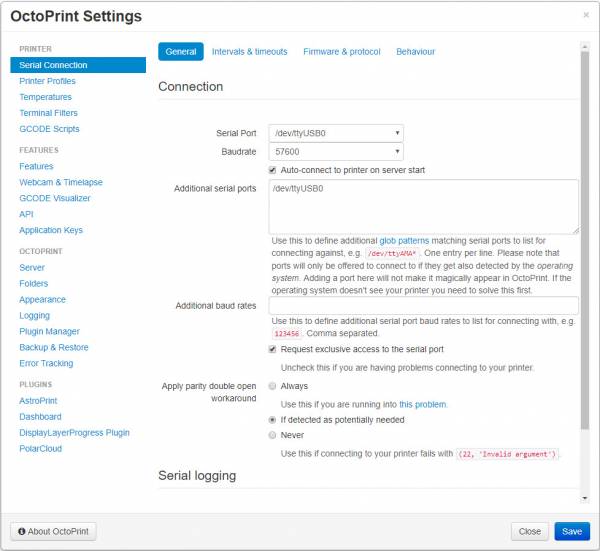
Serial Connection
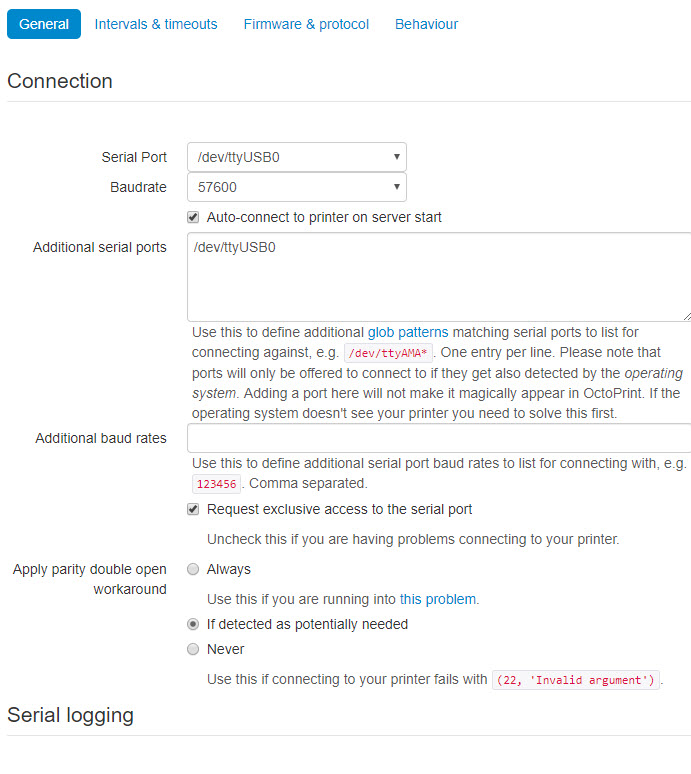
1. General
1) Connection
Communication parameter setting, please use the default value
2) Serial logging
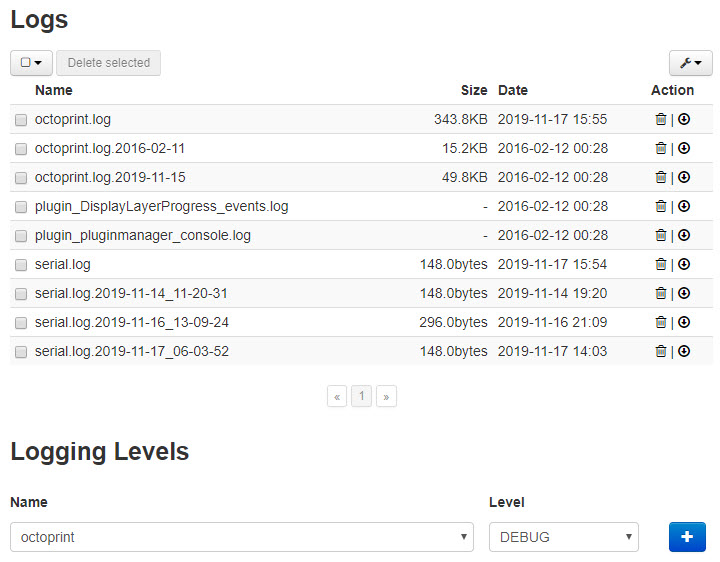
If you need to view the communication log, you can turn on this option, the communication log is saved in serial.log, you can view it through Logging
2. Intervals & timeouts
Query interval and timeout setting, please use the default value

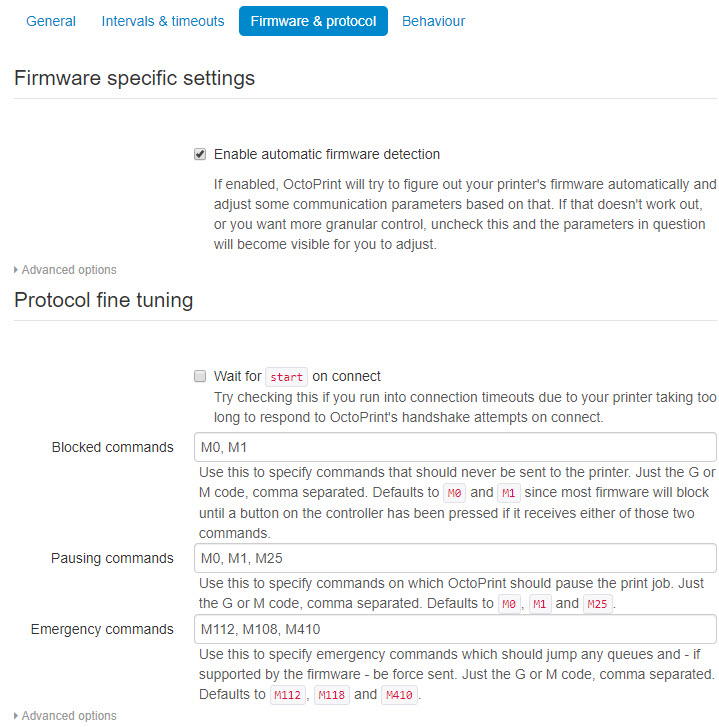
3. Firmware & protocol
Firmware and communication protocol settings, please use the default values
4. Behaviour
System event settings, please use default values

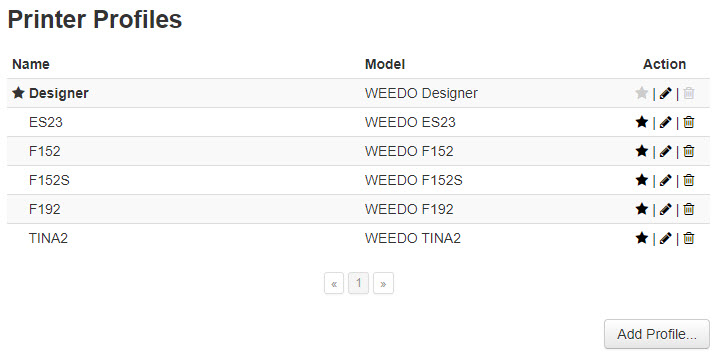
Printer Profiles
Printer configuration parameter settings, please refer to the help documentation of each model for specific settings
TINA2, F152S
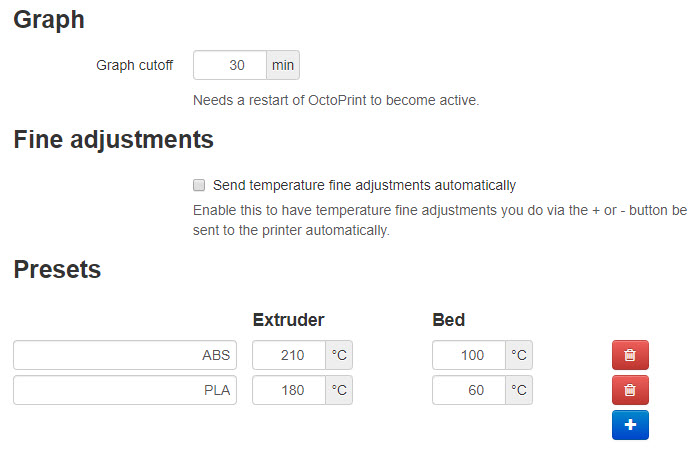
Temperatures
Temperature related function settings, please use the default value
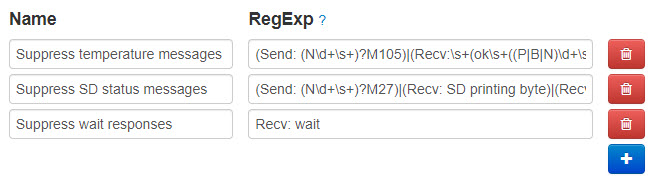
Terminal Filters
Communication terminal filtering function setting, please use the default value
GCODE Scripts
GCODE script settings, please refer to Set GCODE script

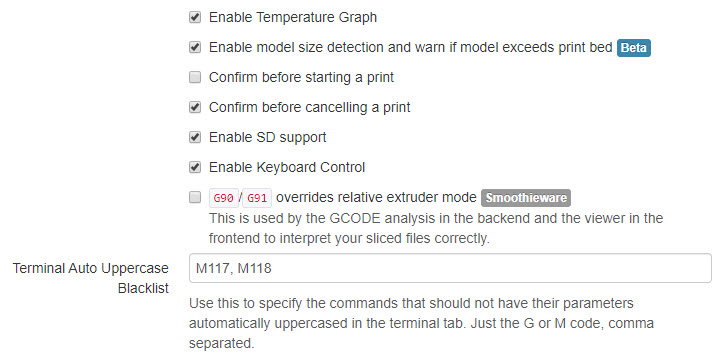
Features
OctoPrint system function settings, please use the default value
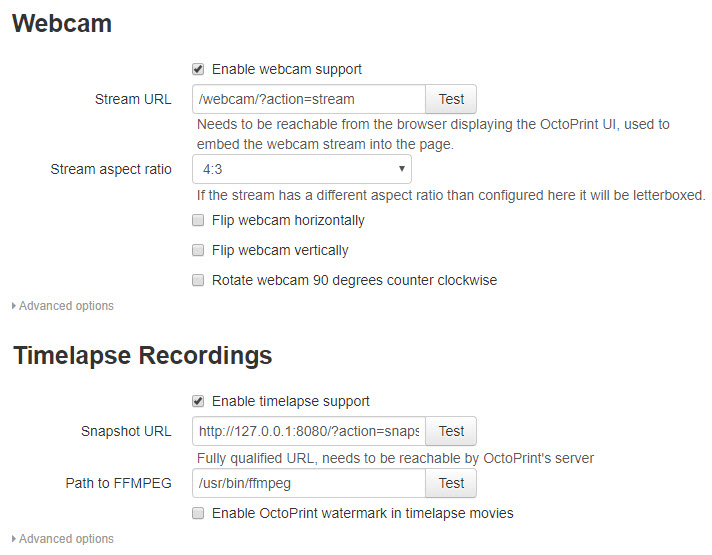
Webcam & Timelapse
Camera and auto recording function settings, please use the default value
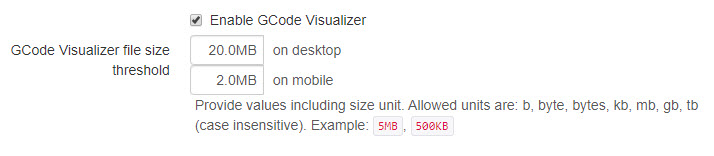
GCODE Visualizer
GCODE path visual display function setting, please use the default value
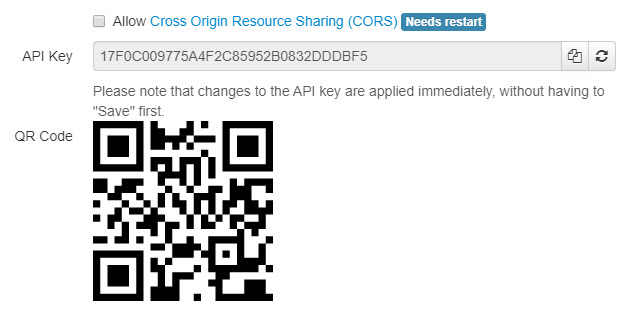
API
Device API QR code display, used when connecting mobile APP and third-party platforms
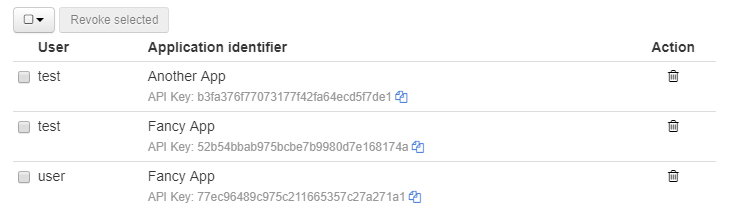
Application Keys
Third-party application key management, do not modify
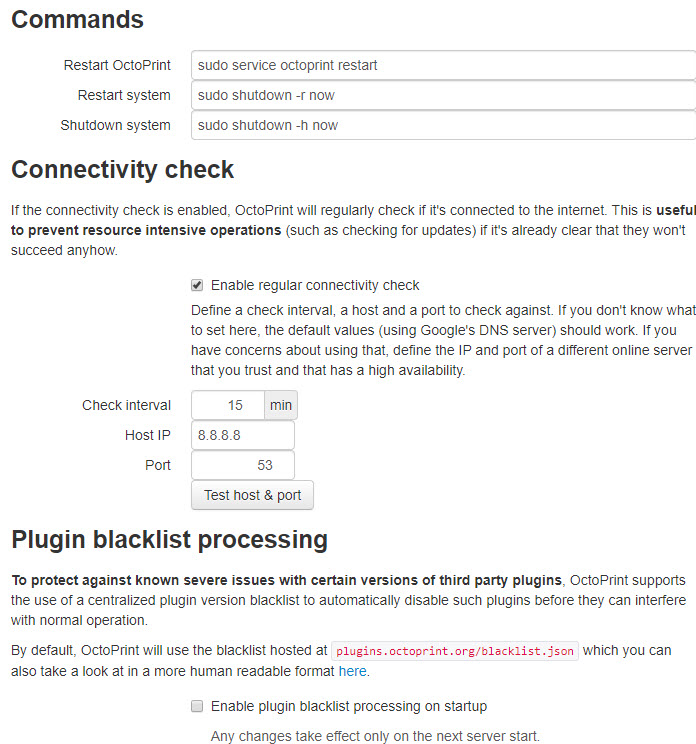
Server
System operation menu instructions and network detection function settings, please use the default values
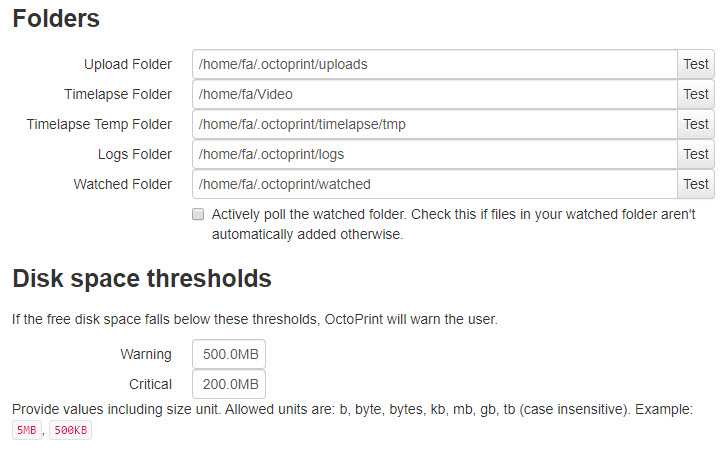
Folders
OctoPrint saves the document path settings, please use the default value
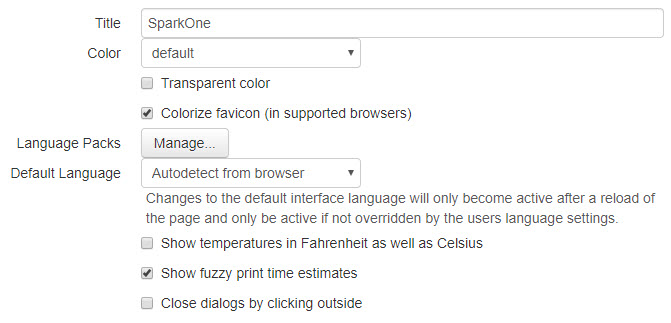
Appearance
OctoPrint appearance settings, please use the default value
Logging
OctoPrint log management, used to view the log files of OctoPrint and each plug-in
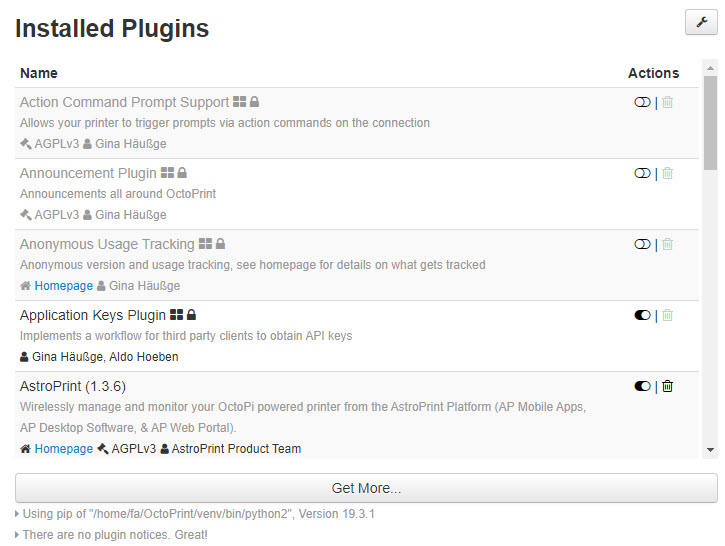
Plugin Manager
OctoPrint third-party plug-in management. If the plug-in fails to be displayed, see FAQ: The plug-in manager does not display the plug-in
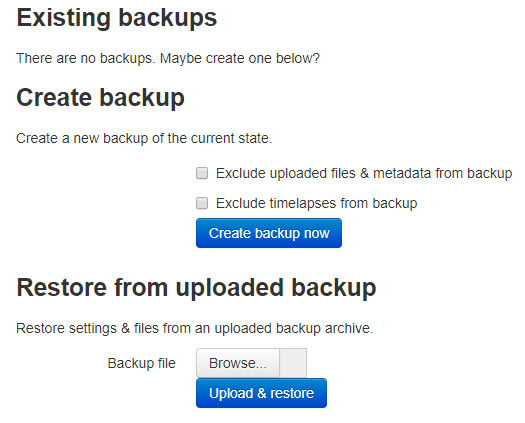
Backup & Restore
OctoPrint parameter setting backup and restore
Error Tracking
OctoPrint error tracking function setting, please use the default value

spark_setting.txt · Last modified: 2020/09/21 13:45 (external edit)
Except where otherwise noted, content on this wiki is licensed under the following license: CC Attribution-Share Alike 4.0 International


